
SmartExtract™ (Beta) Powered by Drake Software
Using SmartExtractTM (Beta) Powered by Drake Software, you can upload your client’s supported tax documents and import extracted tax data directly into a tax return. This helps streamline data entry by importing information from supported tax forms. This feature uses AI-assisted extraction to help reduce manual data entry from supported tax forms.
SmartExtractTM (Beta) is available at no additional cost during the beta period for eligible TaxAct Pro users. See below for details.
Watch the video SmartExtract Beta for a demonstration.
To begin using SmartExtractTM (Beta), follow these steps:
- Open an individual (1040) tax return in TaxAct Pro.
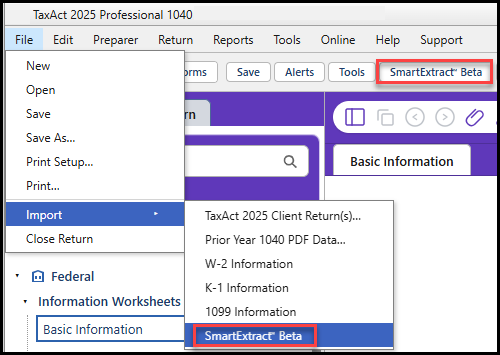
- From the File menu, choose Import > SmartExtractTM (Beta) or click SmartExtractTM (Beta) on the toolbar.
- Choose local or Client Portals* files for extraction:
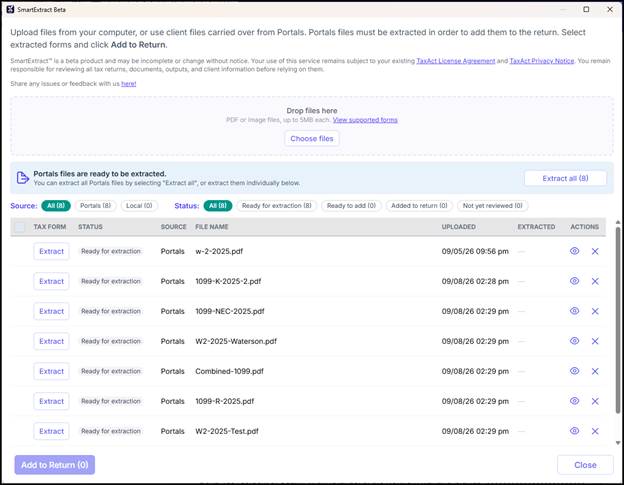
- Supported file types include PDF and image files, up to 5 MB each. There is a limit of 20 documents per return. Click View supported forms to see a list of forms that can be extracted.
- To upload local files, click Choose files and select documents from your computer. Each file will be reviewed and extracted after you upload it.
- If this taxpayer has a Client Portal, their Portals files will be listed and show the status Ready for extraction. Click Extract beside each form in the list or click Extract all (#) to add all documents from Client Portals. This does not remove the file from Client Portals.
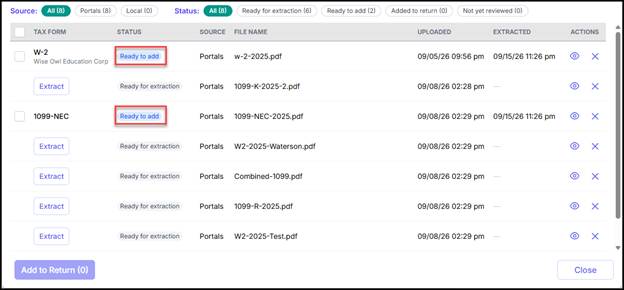
- After you extract the files, the Status will update to Ready to add.
- TIP You can click the filter Ready to add if you want to only see those files that are ready to be added to the return.
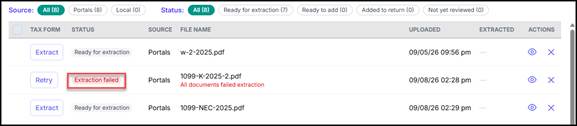
- If any files encounter an error during extraction, they will show a Status of Extraction failed. First, verify that the file contains a supported form. If it does, you can click Retry.
- The status Form not available will show if the document sent for extraction is a form that is not yet supported for extraction.

- TIP You can click the filter Ready to add if you want to only see those files that are ready to be added to the return.
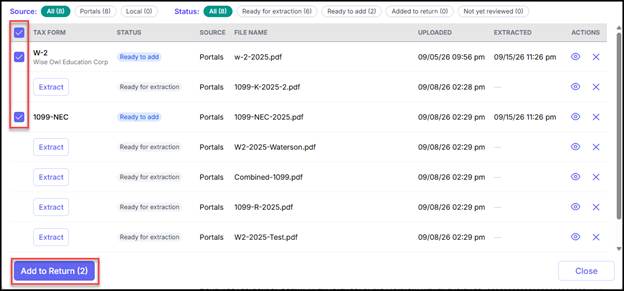
- To proceed with adding items to the return, select the check box beside the tax forms that you want to add, or click the checkbox in the column header to select all, then click Add to Return.
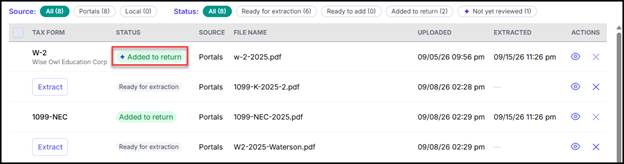
- The status updates to Added to Return with a solid purple sparkle. Click on the Added to Return indicator in the Status column to open the data entry screen inside the client’s return.
- Data entry is displayed on the left, and the original document is displayed on the right. Review them side-by-side to verify the imported data and make changes, if needed. Some additional selections may be required, such as choosing to whom the form belongs.
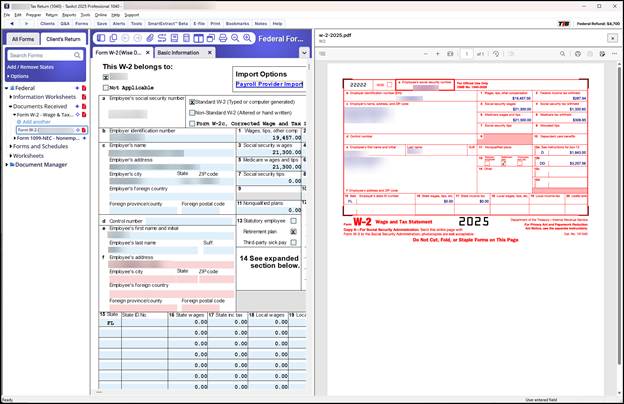
- You can hide the form PDF at any time by clicking the X button above the document (on the right).
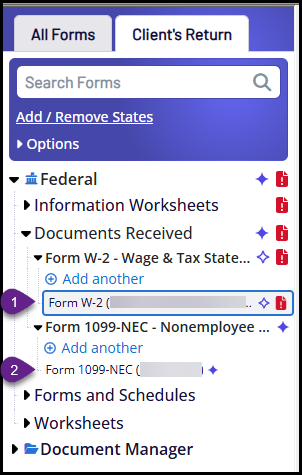
- On the left, you will see a purple sparkle beside the form name. If it is a solid sparkle, that form has not yet been reviewed (2 below). Once you have reviewed the results, the purple sparkle will show as an outline only (1 below).
- After the form has been reviewed, the source document is not open by default when you go back to the from entry. To see the PDF, click on the form in the left menu. Then, right-click on the form, and select view source document.
- When you are done reviewing the form, you can click the X to close the screen. Then, navigate to the next imported form (solid purple sparkle indicator) in data entry.
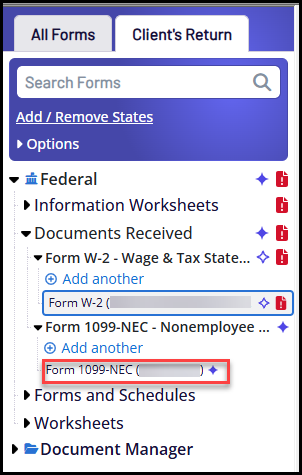
- Alternatively, click SmartExtract (Beta) in the toolbar to continue your review. You can toggle the Not yet reviewed filter to focus on forms that have not yet been reviewed.

- Alternatively, click SmartExtract (Beta) in the toolbar to continue your review. You can toggle the Not yet reviewed filter to focus on forms that have not yet been reviewed.
- When you have finished reviewing the forms, click Save on the toolbar.
*Client Portals is a subscription that is purchased separately from TaxAct Pro. See the FAQ article Professional Editions: Client Portals – Overview for details. The Client Portals section will only be displayed if you have a current subscription and files exist in that taxpayer’s Client Portal.
Print or e-File Notification
If you have not reviewed all the imported forms, you will see a message page when you attempt to print or e-file the return.
We recommend that you review the forms prior to proceeding. Click Review in Forms View and then review each form that shows with a solid purple sparkle beside the form name.
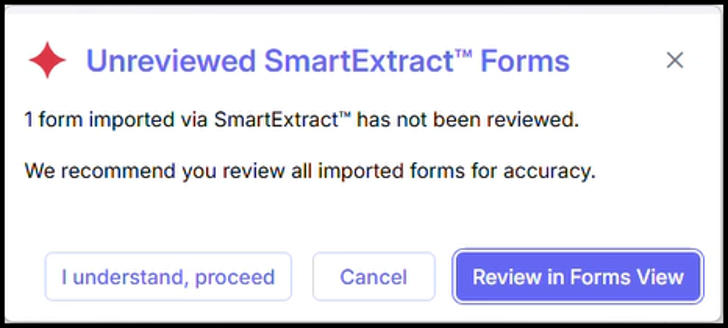
If you want to proceed without reviewing, click I understand, proceed.
Frequently Asked Questions
Contact our TaxAct Pro team at (319) 731-2682, option 1, for assistance.
SmartExtract (Beta) is an AI-assisted tool that extracts information from supported tax source documents and organizes it for use during return preparation.
Yes. You can upload an image of a supported tax form, and the information will be extracted and imported where possible.
The following forms are supported in this beta release:
- Form W-2
- Form 1098
- Form 1099-B
- Form 1099-DIV
- Form 1099-DA
- Form 1099-INT
- Form 1099-MISC
- Form 1099-R
- Consolidated Form 1099 (for 1099-DIV, 1099-INT, and 1099-B)
Yes. You can upload multiple files in a single operation. Each supported tax form is extracted and added to the return separately.
Yes, there is a limit of 20 documents per return.
You can upload PDF and image files, including JPEG, JPG, and PNG files. The maximum file size is 5 MB each.
If the form is not supported, an exception message will be displayed, and the information will not be imported into the return. You must enter that information manually, if applicable.
Yes, you can delete or edit imported data, if needed. Simply open the regular data entry screen for the form that was imported.
No. SmartExtract does not file returns. Users should review and verify extracted information before using it in the return preparation process.
No, the beta is available at no cost during the beta period for eligible TaxAct Pro users.
SmartExtractTM is sold on a prepaid, per-return basis. Bulk discounts are available:
| Returns | Purchase price |
|---|---|
| 1 | $4.95 |
| 10 | $34.95 |
| 25 | $64.95 |
| 50 | $99.95 |
| 100 | $149.95 |
Note:
- The free beta period runs through December 31, 2026.
- Additional information, and the ability to purchase, will be available in December 2026.
- SmartExtract purchases made on or before April 30, 2027, expire on December 31, 2027, if not used. Unused purchases made after April 30, 2027, expire on December 31, 2028.
No. SmartExtract (Beta) is currently available only for 2025 returns in TaxAct Pro.
SmartExtract (Beta) is currently available only for 1040 returns.
Future enhancements may expand this capability.
No. If you do not have a Client Portals subscription, you can still use SmartExtract (Beta). You will just need to upload files that you have stored in another location as the Client Portals integration will not be available.